Prompt Tracking lets you monitor your brand’s daily visibility for a custom set of prompts across AI search platforms, including ChatGPT, Google AI Mode, and Gemini.
To access this feature, you need a subscription to the AI Visibility Toolkit.
Once you have access, you can:
- Track your domain's positions for target prompts in ChatGPT Search, Google’s AI Mode, and Gemini to stay visible in the top AI-powered search experiences
- Monitor your average position and visibility trends across both traditional and AI search to understand how performance shifts over time
- Compare your AI search visibility with Google’s traditional rankings, identifying gaps and opportunities
- Get daily updates on position changes in AI search so you can respond quickly to visibility fluctuations
- Analyze your competitors’ performance in AI-driven search to benchmark your performance against others in your niche
- See which domains and pages AI platforms cite as sources for your tracked prompts to find opportunities to earn new mentions
Setting Up Prompt Tracking
When creating a new Prompt Tracking campaign, you can select ChatGPT Search, Google AI Mode, or Gemini as your search engine:
- Go to AI Visibility > Prompt Tracking
- Click Add new target or edit an existing campaign
- Select ChatGPT, Google AI Mode, or Gemini in the Search engine section
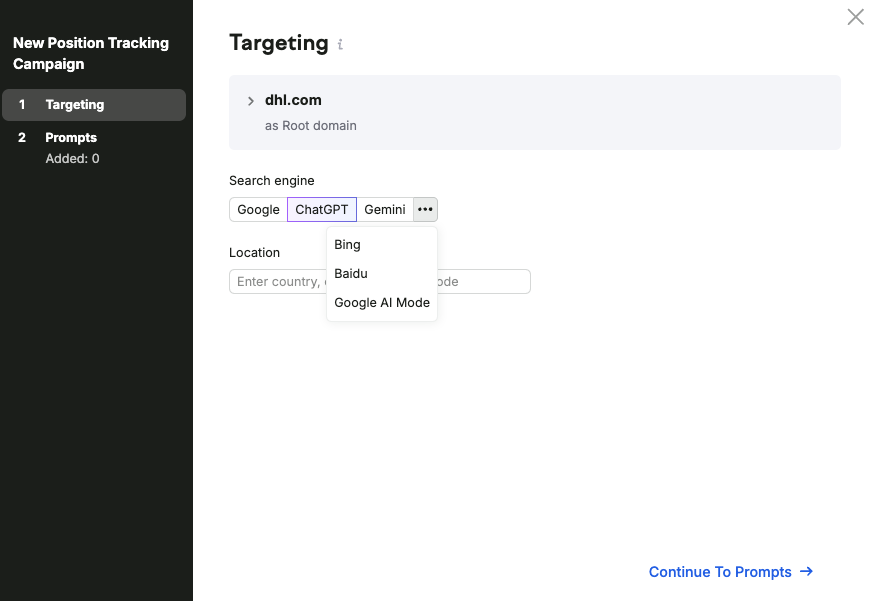
- Enter your location and language (if available). The language selector is available for locations that support 2 or more languages
- Once your targeting is set, click Continue To Prompts to enter the target queries you wish to track
- Add the queries you wish to track. You can enter them manually (1 per line or separated by commas), import from TXT or CSV, or use the prompt suggestions feature.

- Once your prompts are added, click Start Tracking to launch your campaign
Understanding Your Reports
After setting up your campaign, you'll be able to view your ChatGPT, Google AI Mode, or Gemini visibility, mentions, and average position, along with a summary of your overall performance.

The interface works the same as Position Tracking on traditional Google, with a few key differences:
- Metrics Available: For ChatGPT Search, Google AI Mode tracking, and Gemini, you'll see AI Visibility, Mentions, Owned Sources, Topic Volume, and Average Position. Estimated Traffic and Share of Voice metrics are not available for either AI search engine at this time.
- SERP Features Filters: AI engines have different SERP features than traditional Google, so these filters will differ accordingly
- Devices & Locations: When you set up a campaign for AI tracking, you can compare it side-by-side with traditional Google, Bing, or Baidu results in the Devices & Locations tab
AI Visibility: Indicates the visibility of your brand within AI-generated answers across tracked prompts.
You can toggle between AI Visibility and Regular Visibility (traditional SERP-based) using the visibility selector at the top of the interface.

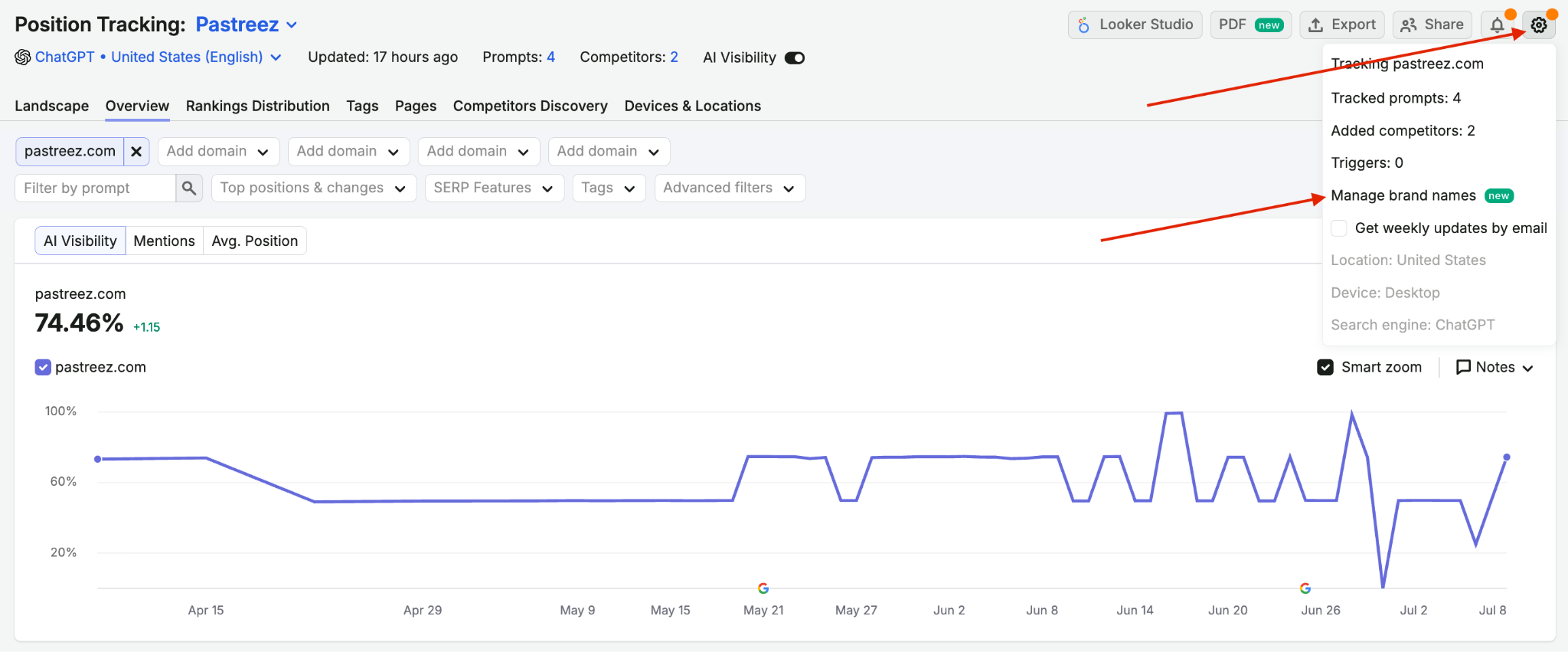
Mentions: Counts how many times your brand name appears directly inside AI-generated answers for tracked prompts.
Mentions are based on the brand name you selected in campaign settings. You can choose the brand name associated with your domain by clicking the gear icon in the top-right corner and selecting Manage brand names. This can be changed at any time.
Viewing SERP Snapshots
Prompt Tracking allows you to view actual SERP snapshots across various AI search platforms to better understand the context of your rankings:
- In the Rankings Overview table in the Overview tab, locate the prompt you want to analyze
- Click View SERP in the SF column

- A pop-up will appear showing you the actual ChatGPT Search, Google AI Mode, or Gemini result for your prompt
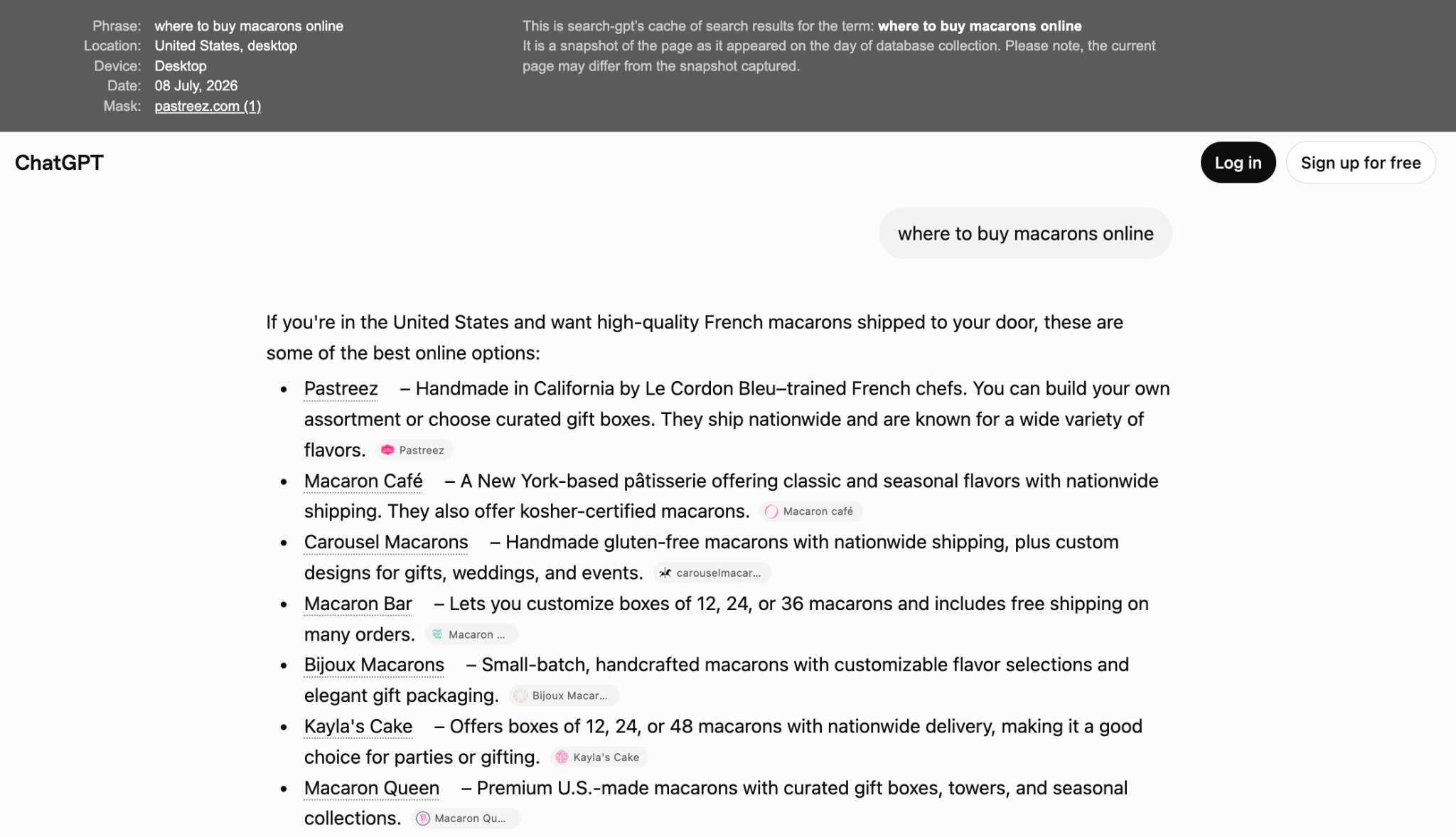 These snapshots provide valuable insights into how different AI search engines structure their responses, which domains they cite, and how your content appears within AI-generated answers.
By reviewing these snapshots regularly, you can:
- See exactly how your content is being referenced or displayed
- Understand the full context of AI-generated responses that include your domain
- Identify which parts of your content are found to be most relevant by AI engines
- Discover opportunities to improve your content's visibility in AI search responses
AI Search Positions & SERP Features
When Prompt Tracking parses the ChatGPT Search, AI Mode response, or Gemini, it measures domain positioning based on where they appear.
In ChatGPT Search, Prompt Tracking ranks each domain in the citation area from top to bottom, like this:

In Google AI Mode, the response area itself is treated as position 1, with citations counted as positions 2, 3, and so on. In some layouts, additional “Quick results from around the web” sections may appear above the response and take earlier positions. Shopping ads are tracked as a distinct SERP feature when product cards appear within the AI Mode interface.

In Gemini, the sources cited within an AI response are also ordered, and each placement is treated as a ranking position. The first citation effectively acts as position 1, the second as position 2, and so on.
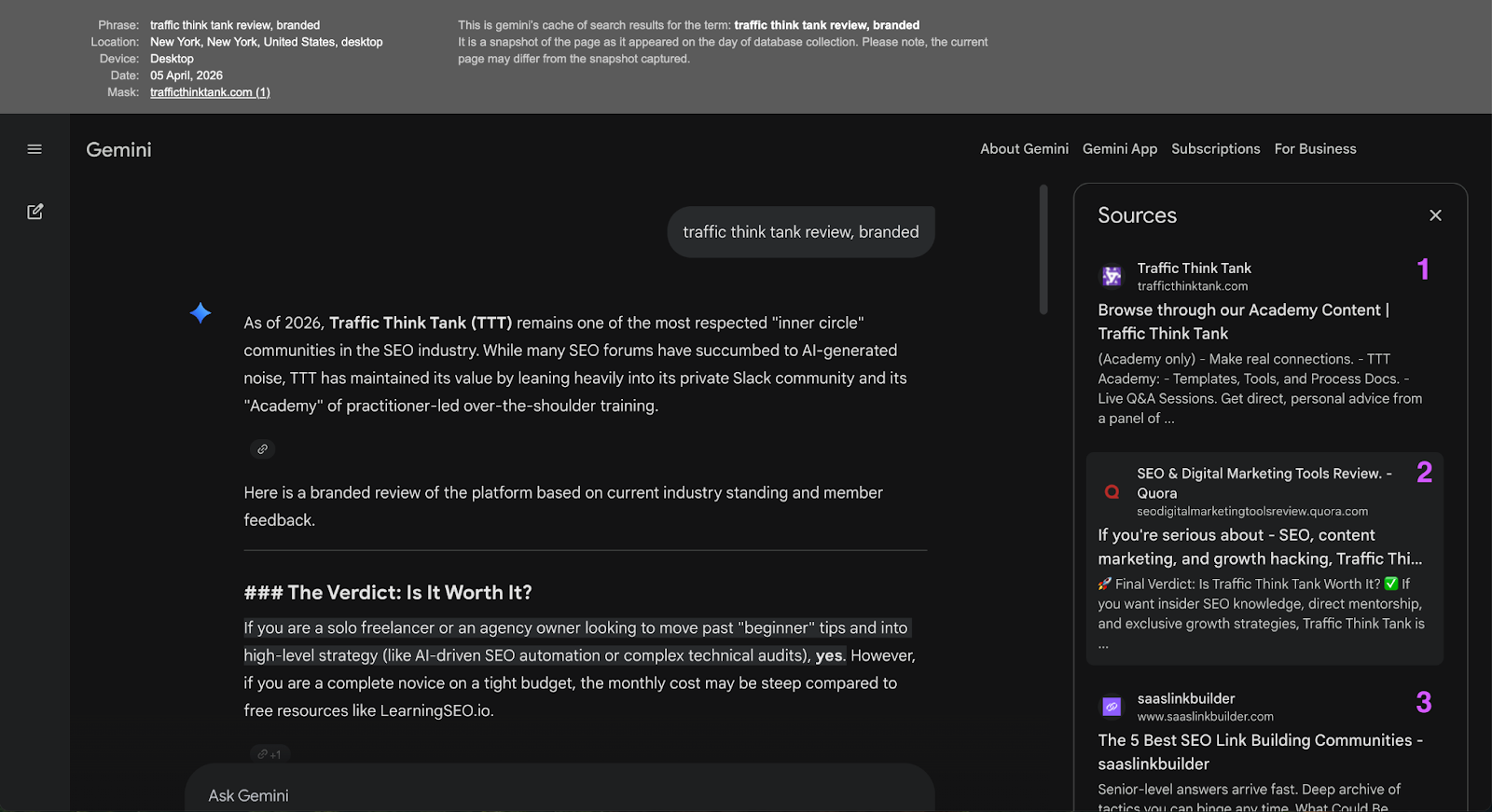
ChatGPT Search, Google AI Mode, and Gemini each offer unique SERP features that differ from those of traditional search engines.
Prompt Tracking identifies and tracks these special result types for ChatGPT Search:
- Response: The standard AI-generated answer that appears at the top of ChatGPT search results. This is the primary text response synthesized from various sources.
- Double Response: When ChatGPT provides two distinct answer sections for a query, it typically offers different perspectives or addresses multiple aspects of the question
- Citations: References to source materials that appear within or beneath the AI-generated response. Citations are crucial for understanding which domains ChatGPT considers authoritative sources.

For Google AI Mode, Prompt Tracking identifies and tracks the following special result types:
- Response: The standard AI-generated answer that appears on the left side of the screen. This is the primary text response synthesized from various sources.
- Search results: Domains cited in the citation area on the right
- Shopping ads: Product-based shopping results displayed within the AI Mode interface, typically featuring product cards with pricing and retailer information

For Gemini, Prompt Tracking identifies and tracks the following SERP features:
- Response: The standard AI-generated answer that appears on the left side of the screen. This is the primary text response synthesized from various sources.
- Search results: Domains cited in the citation area on the right

You can filter your Overview by these SERP features using the SERP Features filter. This allows you to:
- Identify prompts where your domain appears in citations
- Track how often your competitors are cited in AI responses
- Discover opportunities to optimize for specific SERP features
- Monitor changes in how AI search platforms display information for your target prompts
Tracking Sources
The Sources report shows every domain and URL that AI platforms cite when answering your tracked prompts, including your own pages. Use it to see where LLMs find the information behind their answers, and to find pages where you can earn new mentions.
To access the report, go to Prompt Tracking > select the Sources tab.
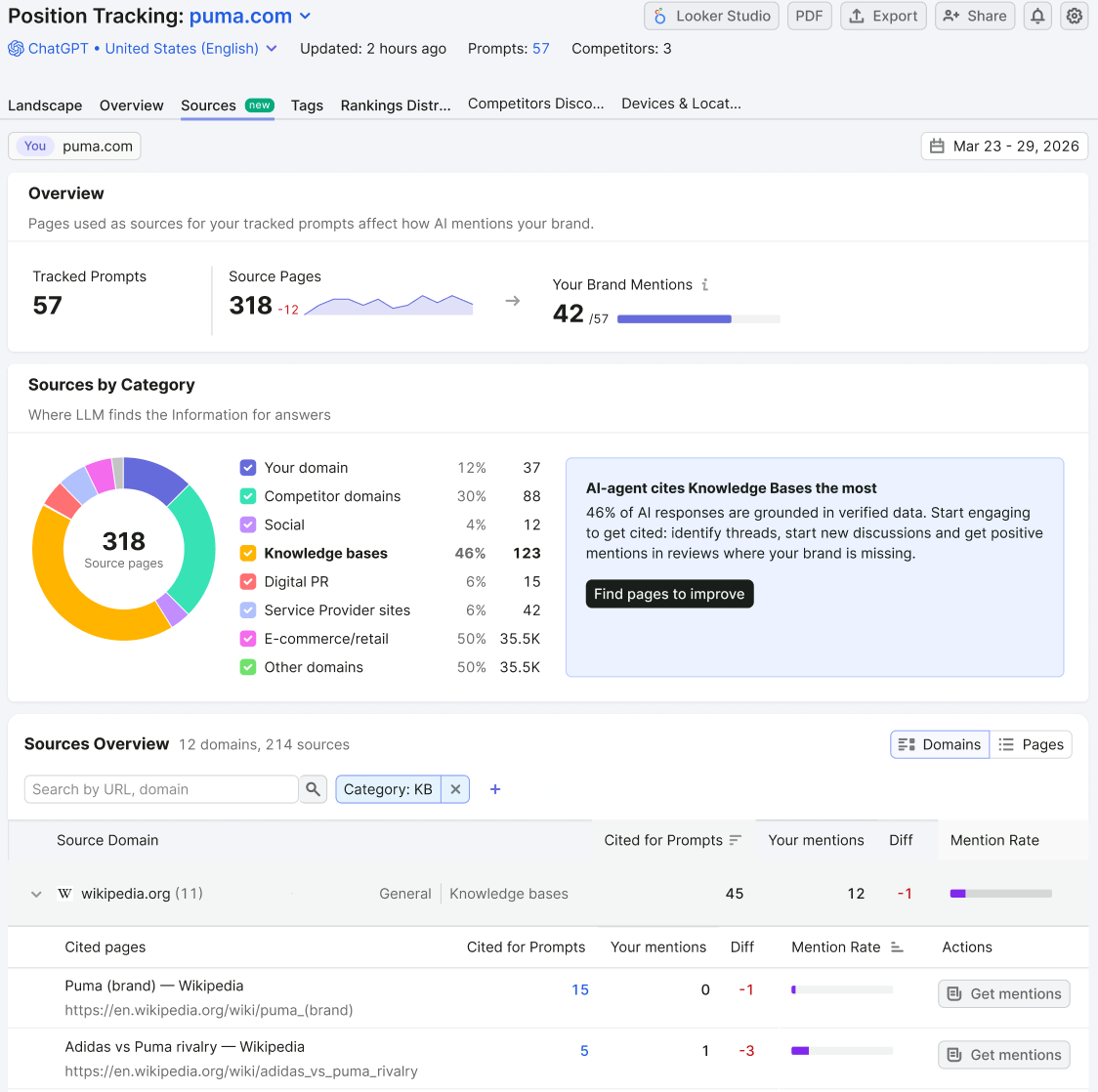
At the top of the report, you will see 3 metrics:
- Tracked Prompts: The total number of prompts in your campaign
- Source Pages: All pages cited as a source in AI-generated answers to your tracked prompts
- Your Brand Mentions: The number of times your brand is mentioned in AI-generated answers to your tracked prompts
Sources by Category
The Sources by Category widget breaks down source pages by where the information comes from: your domain, competitor domains, social, knowledge bases, and other domains. Hover over a category to see its subcategories.
Next to the chart, an insight highlights the dominating category with a suggested next step. Select the button in the insight to filter the report by that category.
All Sources
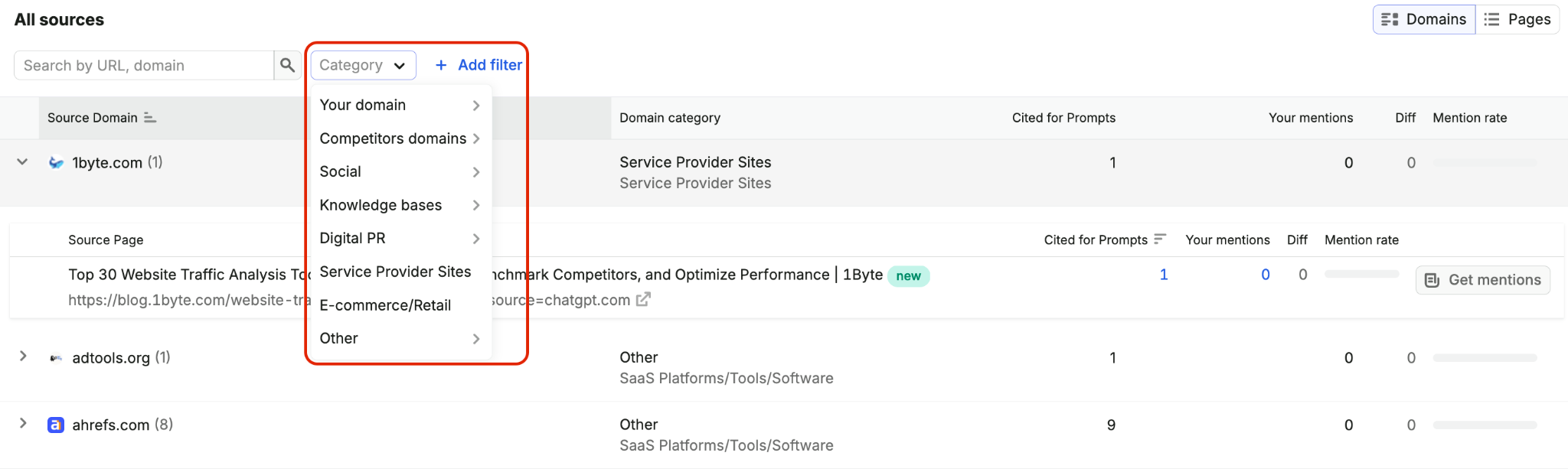
The All Sources table lists every source, with a toggle to switch between two views:
- Domains: Groups sources by domain. Select the arrow next to a domain to expand its cited pages.
- Pages: Lists all cited pages individually
The table includes:
- Source Domain: The website cited by the AI platform as a source in its responses
- Domain category: The category and subcategory the source belongs to
- Cited for Prompts: The number of times the domain or URL was used as a source in AI-generated answers to your tracked prompts
- Your mentions: The number of times your brand is mentioned in AI-generated answers to your tracked prompts
- Diff: The change in your brand mentions since the last update
- Mention Rate: The percentage of AI-generated answers to your tracked prompts that mention your brand
You can search the table by URL or domain, and filter by domain (yours or competitors), social, knowledge base, URL changes, or mention rate. Use advanced filters under +Add filter to include or exclude prompts based on text conditions.
Cited Page Details
Select Get mentions next to any cited page to open its details.
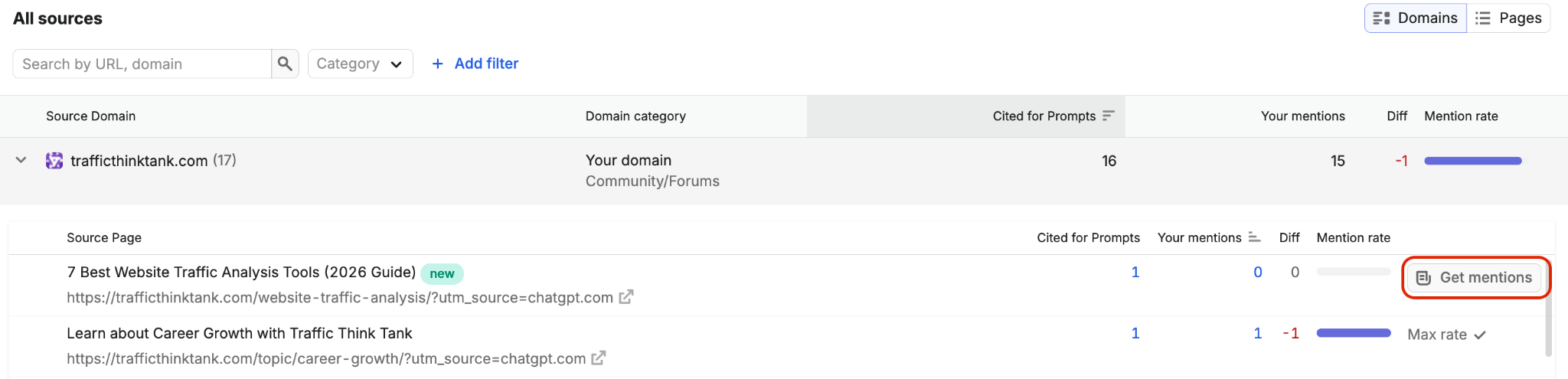
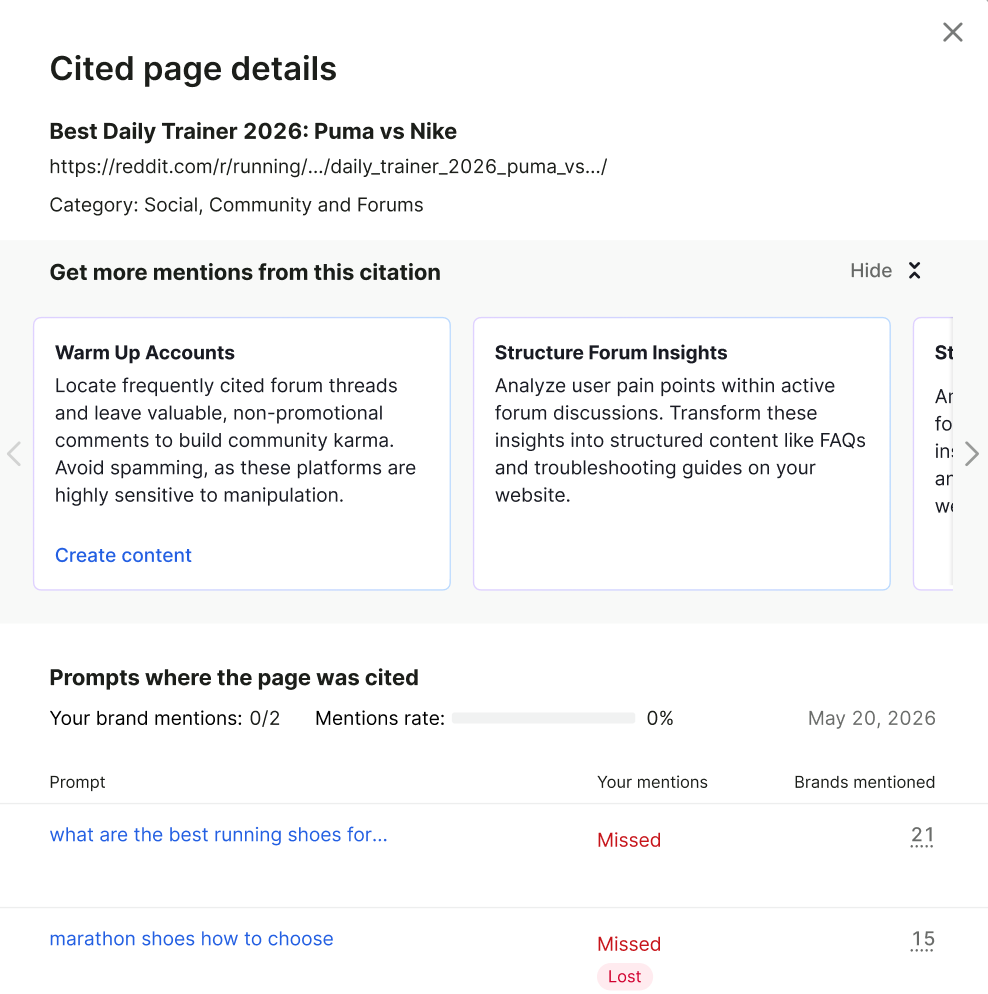
The panel shows:
- Recommendations: Suggested actions to earn mentions from this citation, tailored to the source category. For example, a knowledge base entry may suggest strengthening your entity profile, while a forum thread may suggest structuring forum insights into FAQs on your site.
- Prompts where the page was cited: Each prompt the page was cited for, with your mention status per prompt (including lost mentions), the number of brands mentioned, and the overall mention rate for the page
Analyzing Performance
Prompt Tracking gives you multiple ways to analyze performance beyond individual prompts - helping you understand trends across search engines, topics, and custom groupings.
Across Search Engines
One of the most valuable aspects of this feature is the ability to compare your performance across different search engines. In the Devices & Locations report, you can:
- Compare your AI search platforms' rankings with your traditional search results on Google, Baidu, and Bing
- Identify prompts where your performance differs significantly between traditional and AI search
- Discover content optimization opportunities based on these differences
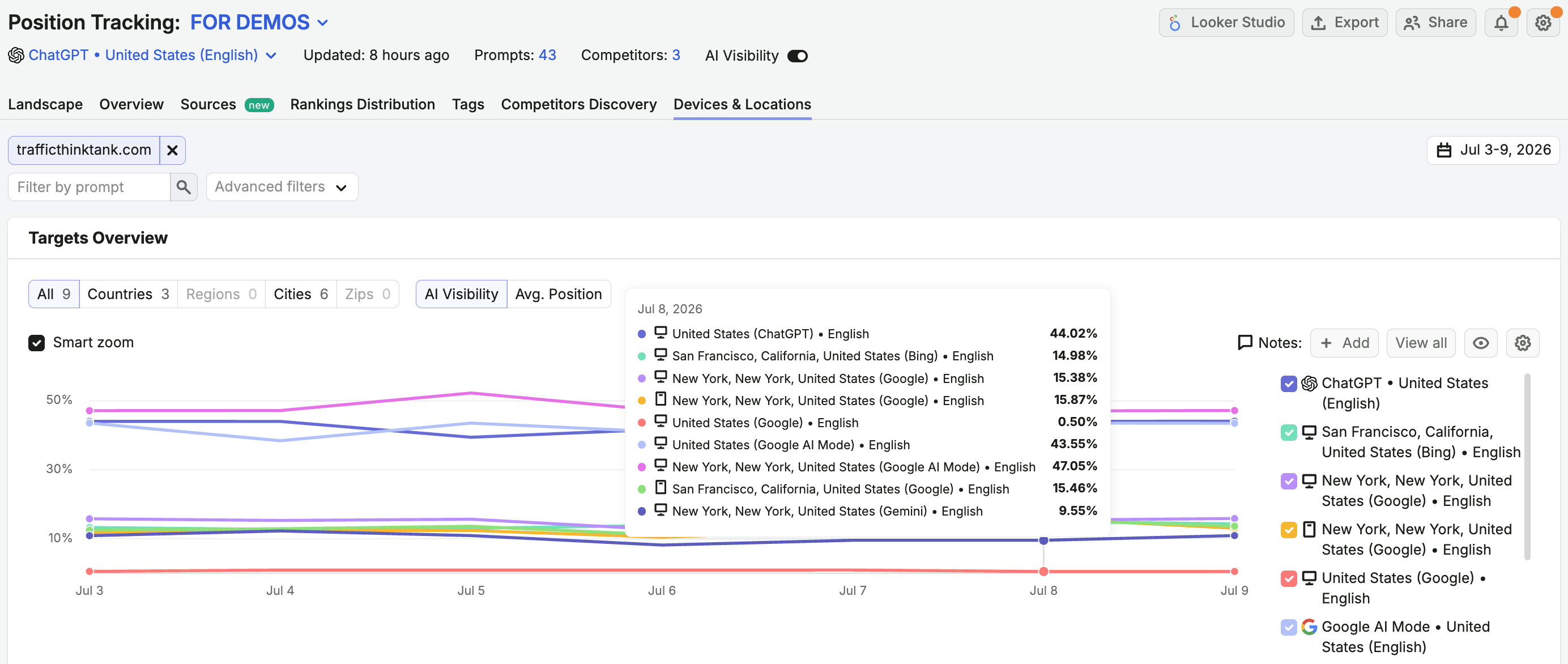
Scrolling below the graph reveals a table that breaks down positions by prompt and search engine, making it easy to pinpoint where performance diverges and where optimization efforts can have the biggest impact.

Across Tags and Topics
Tags and Topics allow you to analyze performance at a higher, more strategic level.
- Tags: Custom labels you apply to prompts (for example, by brand, location, or intent)
- Topics: AI-generated groupings that cluster prompts by semantic similarity
You can access both through the Tags filter in the Overview report or by navigating directly to the Tags tab.
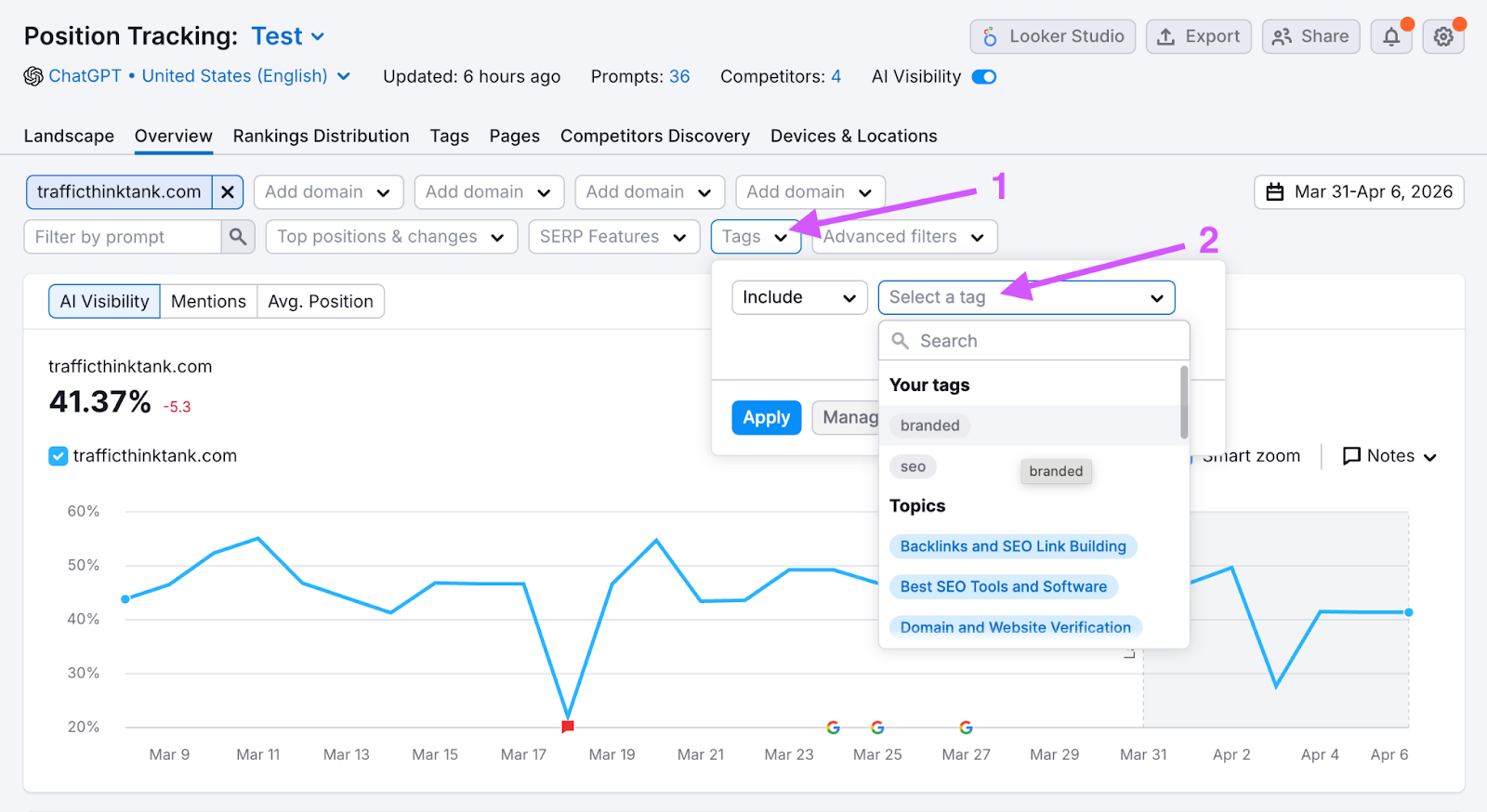
In the Tags report, you can:
- Compare AI Visibility, Mentions, and Average Position across multiple tags or topics
- Track performance trends over time for specific thematic groups
- Identify which topics consistently drive strong visibility versus those that fluctuate or decline
Exporting and Scheduling Reports
After analyzing your campaign data, you can share your findings or keep a copy for your records by exporting your reports. Click the export button in the top-right corner of the interface to download your data in one of the following formats:
- Excel
- CSV
- CSV semicolon
- Google Sheets
On the Landscape and Overview tabs, you can also click the PDF button in the top-right corner to export the report as a PDF.
To stay on top of your brand’s AI visibility without needing to log in daily, you can schedule automated data exports to be sent directly to your email. You can choose to receive these reports on a daily, weekly, or monthly basis.
You can set up or adjust your scheduling preferences at any time:
- Click the "Export" button in the top-right corner.
- Select "Schedule export."
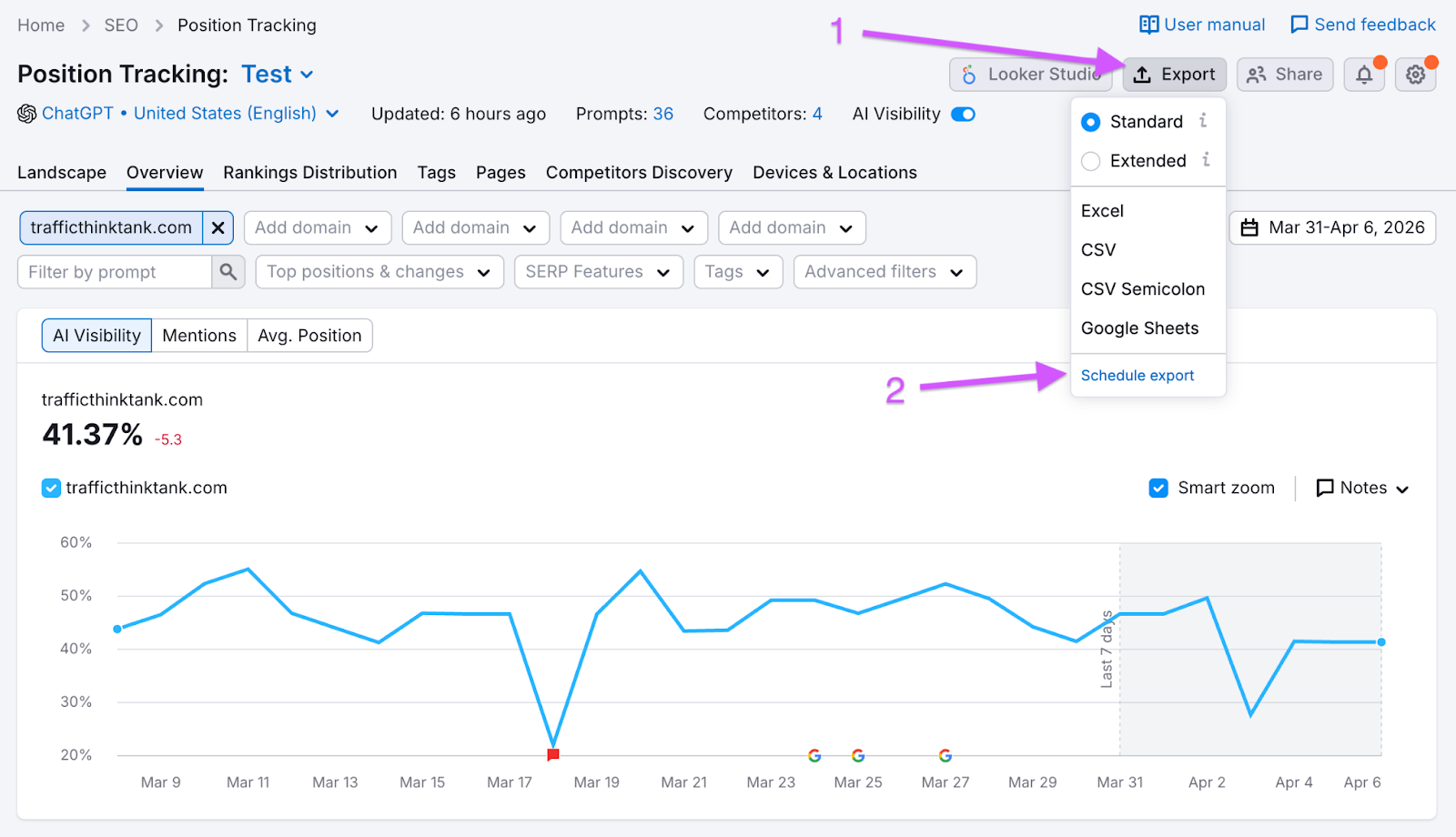
- Confirm the email addresses where you would like the data delivered.
- Select your preferred export frequency (Daily, Weekly, or Monthly).
Best Practices for AI Search Tracking
To get the most out of AI Search tracking:
- Choose diverse prompts that represent your customers' pain points: AI platforms can handle detailed prompts with more details and pain points to sound like your ideal customer profile
- Include commercial-intent prompts: Track queries that may trigger Shopping ads in Google AI Mode to monitor product visibility
- Find in-demand topics with Prompt Research: By conducting prompt research, you can discover in-demand topics that your customers are asking AI about
- Monitor regularly: Check your rankings at least weekly to spot trends
- Compare with Google, Bing, or Baidu: Analyze where your content performs differently in AI versus traditional search
- Update content strategically: Use your tracking campaign to validate your tests and content optimizations specifically for AI search engines
Using Data to Improve AI Search Visibility
The data from your AI Search tracking can help inform your content strategy. Here are some suggested next steps you can take once you start tracking on AI search engines.
- Identify content gaps: Take note of the topics where competitors outrank you in AI search
- Find citation opportunities: Use the Sources report to see which pages AI platforms cite for your prompts, and follow the recommendations for each cited page to earn new mentions
- Optimize existing content: Update pages that perform well in Google but poorly in ChatGPT Search, Google AI Mode, or Gemini
- Improve product visibility: Ensure structured data, product feeds, and pricing information are optimized for AI-driven shopping experiences
- Track improvements: Monitor position changes after making optimizations
Limits
- Only desktop searches are supported at this time for all available AI search engines.
- Estimated Traffic is not included.
- Volumes and Topics are currently available only in the following countries:
- Australia
- Brazil
- Canada
- France
- Germany
- India
- Italy
- Japan
- Mexico
- Netherlands
- Spain
- Sweden
- United Arab Emirates
- United Kingdom
- United States
The number of prompts you can track depends on the level of your Semrush Toolkit subscription.
- AI Visibility Toolkit subscription alone: 25 prompts per account
- Semrush One Starter: Monitor up to 5 websites in the SEO monitoring tools (e.g., Position Tracking or Site Audit), 50 prompts, and 500 keywords (daily tracking)
- Semrush One Pro+: Monitor up to 15 websites in the SEO monitoring tools, 100 prompts, and 1,500 keywords (daily tracking)
- Semrush One Advanced: Monitor up to 40 websites in the SEO monitoring tools, 200 prompts, and 5,000 keywords (daily tracking)
 Back to Semrush Toolkits category